Google Found the Wrong Version of Your Page: A Plain-English Guide to Canonical Confusion
You published one page, but Google indexed a different address. Your preferred URL never reached the search results, which leaves you wondering why Google chose another version.
This happens when the same page is accessible through multiple URLs. Google may treat those addresses as duplicates and select a different one as the canonical URL, even when you have a preferred version.
The good news is that you can often fix this by making your preferred URL clearer to Google. This guide explains why Google chooses the wrong version, how to identify the cause, and what you can do to get the right URL indexed.
Why Does Google Choose a Different Canonical URL?
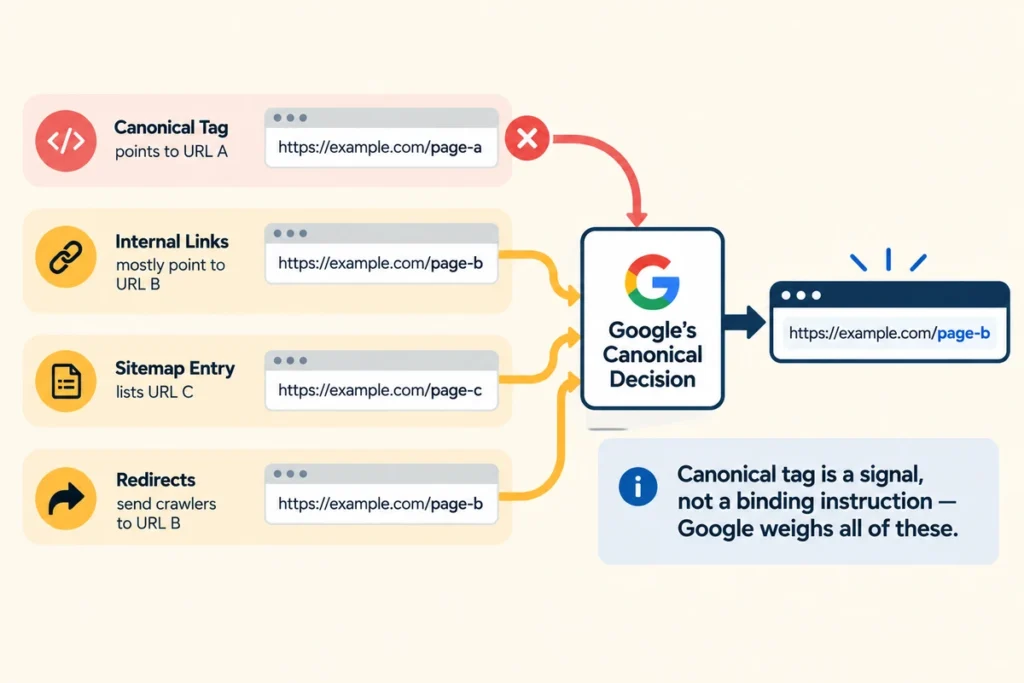
Google may choose a different canonical URL when it finds another version of your page that it considers a better representative of the content. Even if you declare a preferred URL, Google can select another one based on the signals it finds across your site.
The problem often starts when those signals point in different directions. Internal links may favor one URL, while your canonical tag points to another. Duplicate pages, inconsistent redirects, and conflicting canonical tags can also make your preference less clear.
To understand why Google made its choice, you first need to know what the warning means, how Google selects a canonical, and what can cause those signals to conflict.
What “Duplicate, Google Chose Different Canonical Than User” Means
This Search Console status appears when Google selects a different canonical URL from the one you specified. As a result, Google may index the selected URL instead of your preferred version.
You might see this with product filters, tag archives, or printer-friendly copies of an article. These URLs can display similar content but use different addresses.
That said, nothing has broken in the technical sense. Still, the page Google ranks may not be the one you spent all afternoon writing (and that stings a little).
How Google Picks a Canonical Version Automatically
Google considers several signals when deciding which URL should represent a group of duplicate pages. These include canonical tags, internal links, redirects, and sitemap entries.
When those signals point to different URLs, Google may select a canonical that differs from your preference. For example, your canonical tag might point to one URL while most internal links lead to another.
However, a canonical tag is a signal, not a binding instruction. Google considers it alongside other signals when selecting the URL it’ll index.
Signs of Google Indexing Problems on Your Duplicate Pages
Canonical confusion often starts when different parts of your site point to different versions of the same page.
Common causes include:
- Inconsistent Internal Links: Some links point to the preferred URL, while others lead to duplicate versions.
- Conflicting Canonical Tags: Different pages declare different canonical URLs, or a page contains multiple canonical tags.
- Redirect Inconsistencies: Redirects send users or crawlers to a URL that conflicts with the declared canonical.
- Duplicate Page Variations: Filters, tracking parameters, and alternate page versions create multiple URLs with similar content.
- Inconsistent Sitemap Entries: Your sitemap lists a URL that differs from the canonical you declare elsewhere.
These inconsistencies can make it harder for Google to identify your preferred URL. The next step is to check which URL Google selected and whether the signals across your site agree with that choice.
Duplicate URLs SEO: How Duplicate Content Confuses Search Engines
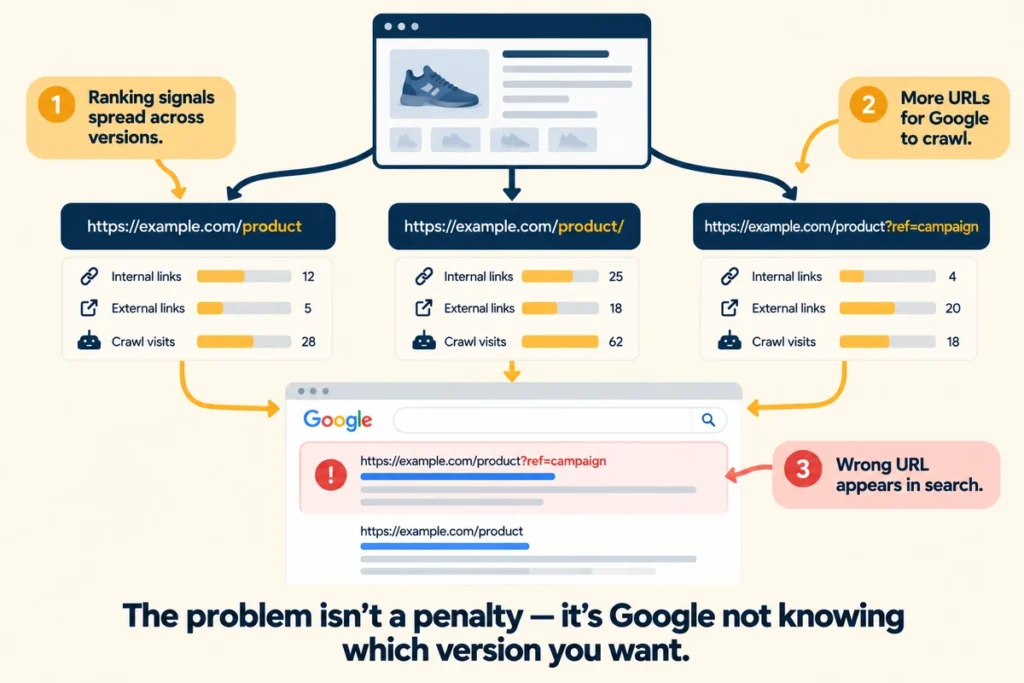
The problem with duplicate URLs isn’t that Google sees the same content and automatically penalises your site. The bigger issue is that several URLs can compete to represent the same page.
Imagine your product page is available at three different addresses. Google has to decide which URL to index, which one to show in search results, and which signals to associate with it. If your site sends mixed signals, the URL you want may not be the one Google selects.
That can create a few practical SEO problems:
- Ranking Signals Spread Across URLs: Internal links and external links may point to different versions of the same page. Google can consolidate these signals, but inconsistent URL signals can make it less clear which version you want to prioritise.
- More URLs for Google to Crawl: Duplicate and near-duplicate URLs give Google more pages to process. This can become a real concern on large sites with thousands of URL variations, although it is usually less important for smaller websites.
- The Wrong URL Appears in Search: Google may choose a duplicate URL as the canonical and show that address in search results instead of the one you intended. Users can then land on a URL you didn’t plan to promote.
We often see the problem start with something as small as a URL variation. A site might use HTTPS on its main pages while an old HTTP version remains accessible. Another might link to both /product and /product/. Neither difference looks significant to a visitor, but each creates another URL Google has to evaluate.
Canonical Tag SEO: Tags vs 301 Redirects for Fixing Duplicate Pages
A canonical tag and a 301 redirect can both help you deal with duplicate URLs, but they solve different problems. The right choice depends on what you want to happen to the duplicate page.
The table below shows where each option fits:
| Your situation | Best fix | Why it works |
|---|---|---|
| Two live pages you both need | Canonical tags | Keeps both addresses usable while one collects the credit |
| A page you’ve retired for good | 301 redirect | Sends visitors and link value straight to the replacement |
| Filter and tracking variants | Self-referencing canonical | Stops parameters from reading as brand new pages |
One important distinction: A canonical tag doesn’t remove the duplicate URL or stop users from accessing it. It tells Google which version you prefer to index and consolidate signals around.
Fixing Canonical Issues With Yoast SEO, Rank Math and Search Console
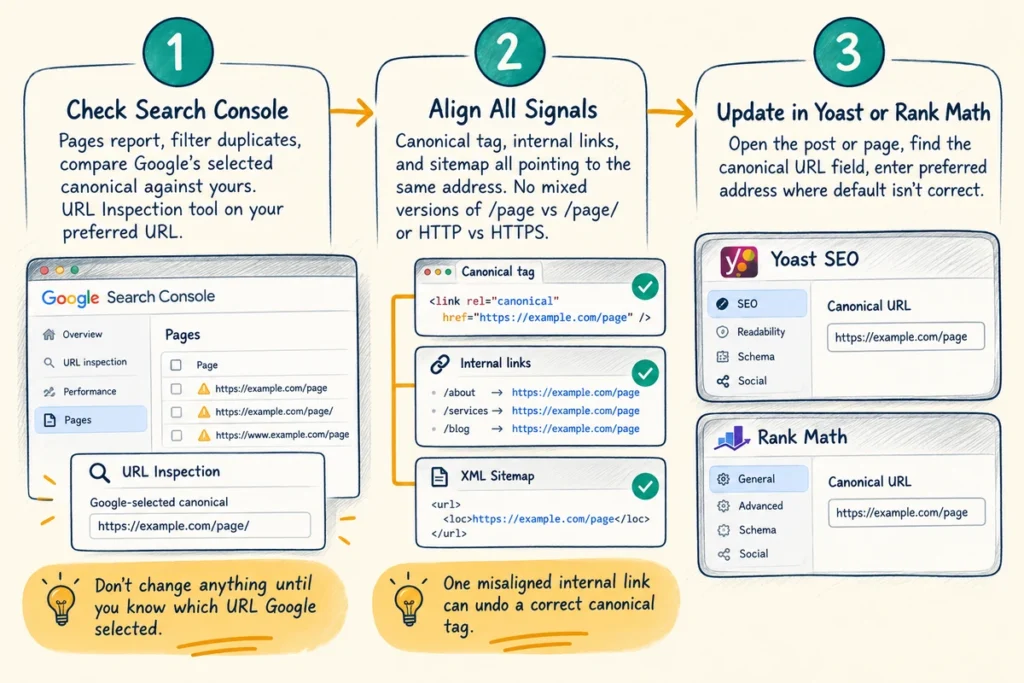
Once you know why Google selected a different URL, the next step is to check which signals your site is sending. You can handle many canonical issues directly in Search Console or WordPress without editing your site’s code.
Start by checking what Google selected, then make your preferred URL consistent across your canonical tags, internal links, and sitemap.
Checking Canonical Signals in Google Search Console
Open the Pages report in Google Search Console and filter for the duplicate rows. Click any URL to compare the canonical Google selected against the one you declared.
Then use the URL Inspection tool on your preferred URL. Check whether Google can index it and whether the page is available to crawlers. You should also check that the URL isn’t blocked by a noindex directive or other conflicting signal.
This gives you a starting point: before changing anything, you can see whether Google disagrees with your preferred canonical and what URL it selected instead.
Make Your Preferred Canonical URL Consistent
After you’ve identified the preferred URL, make your site’s signals point to that same address. Use a self-referencing canonical on the preferred page, link to that URL internally, and use the same version in your XML sitemap where appropriate.
The goal is to give Google one clear URL to associate with the page. If your canonical tag points to one address while your internal links and sitemap point to another, you’re sending mixed signals. Aligning those signals makes your preference clearer.
Be consistent with URL variations too. For example, don’t link to both /page and /page/ if your site treats them as different URLs. The same applies to HTTP versus HTTPS, www versus non-www, and unnecessary URL parameters.
That consistency also helps prevent the same problem from returning. If a new internal link keeps sending Google to a duplicate URL, fixing the canonical tag alone may not solve the underlying issue.
Using Yoast SEO or Rank Math for Quick Fixes
If your site runs WordPress, Yoast SEO and Rank Math let you manage canonical URLs without editing template files directly. Open the relevant post or page, find the canonical URL setting, and enter the preferred address when the default value isn’t appropriate.
For most standard pages, the plugin’s default self-referencing canonical is usually what you want. You’d normally change it only when another URL should represent that content.
After making the change, check the page source or inspection tools to confirm that the canonical tag now points where you expect.
Getting Your Canonical Tags Working for You
When Google indexes a different URL than the one you chose, don’t start by adding another canonical tag. First, find out which URL Google selected. Then check whether your canonical tags, internal links, redirects, and sitemap all point to the same version.
Keeping those signals consistent makes it clearer which URL you want Google to index and helps prevent duplicate URLs from competing with the page you actually want to rank.
If you’re dealing with canonical issues across multiple templates or can’t find why Google keeps choosing the wrong URL, reach out to Dashboard Co-op. We’ll audit the affected pages and identify the signals causing the confusion.